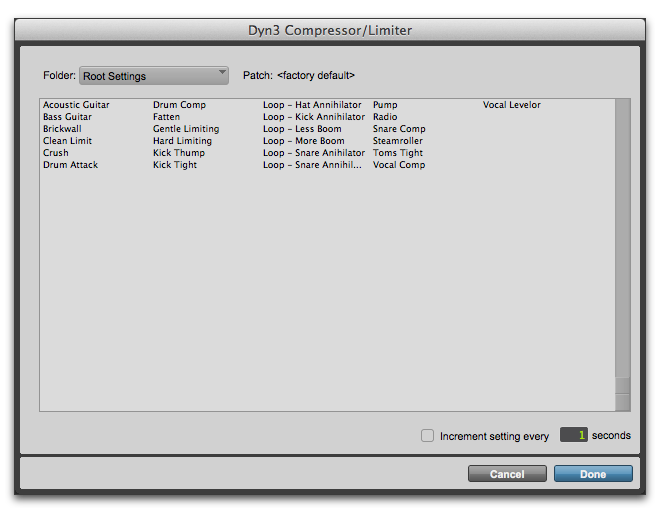
Plug-In Settings Dialog
The Plug-In Settings dialog lists the presets for the current plug-in type. From this list, you can audition and select presets.
Use the Folder pop-up menu at the top of the Plug-In Settings dialog to switch between plug-in settings subfolders, or root settings folders.
Plug-In Settings dialog
The Plug-In Settings dialog includes the following:
• Folder
This pop-up menu lets you switch between presets located in root folder (and any available subfolders).
• Patch Field
This field displays the name of the active (highlighted) preset.
• Increment Patch Every X Sec
This option lets you audition plug-in presets in series by automatically scrolling through them for a specified number of seconds.
To change plug-in presets using the Plug-In Settings dialog:
1. Click the Settings Select button.
2. Do one of the following:

Select a preset from the dialog list.
Use the Arrow keys to scroll through the available presets.

To switch between plug-in settings subfolders, press Command (Mac) or Control (Windows) and use the Up/Down Arrow keys.
3. Click Done.