Relinking Multiple Missing Files
Using the Find Links button, multiple files can be matched and linked in one procedure.
To relink multiple missing files:
2. Select one or more items in the Files to Relink list. The Find Links button becomes available.
3. Click Find Links.
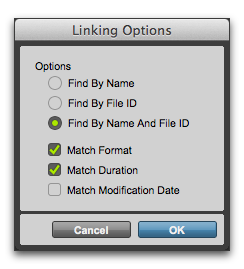
4. Configure criteria for relinking, if necessary, in the Linking Options dialog:

By default, Find by Name and ID is enabled.
To add additional matching criteria, select an option from the Linking Options dialog. (Modification Date is only applicable to Catalogs.)
If
Match Duration is enabled, Pro Tools only selects files of the same length or greater.
Linking options
5. Click OK to continue (or click Cancel to return to the Relink window).
Pro Tools searches for an acceptable candidate for the first missing file (the first item selected in the Files to Relink list). A link icon appears next to each file as Pro Tools finds and links the first acceptable candidate to the missing file. The Link Path column shows the location of the selected candidate. Pro Tools continues searching, matching, and linking for each missing file in the Files to Relink list.
6. To view a candidate for a missing file, select to highlight the missing file. That file’s candidate appears in the Candidates pane, where you can view its information and waveform.