Relinking Individual Missing Files
In some situations, individual files must be relinked one at a time in order to relink the project to the correct file. This is necessary if multiple copies of a media file are online, or whenever you want the most control and flexibility over the relinking process.
To relink a missing file:
1. Configure the Areas to Search pane
2. Select one item in the Files to Relink list.
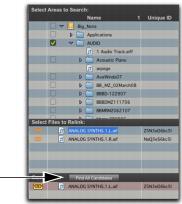
3. Click Find All Candidates.
Find All Candidates, for relinking a selected missing file
Pro Tools searches the selected volumes and displays all files that match File Name or Unique ID in the Candidates list. Link icons indicate if a Candidate is already linked.
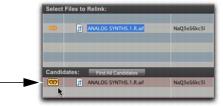
4. Click the Link icon next to the appropriate Candidate to which you want to relink. A Link icon next to an item indicates it will be relinked to the item currently selected in the Files to Relink list.
Link icon, indicating Linked status
5. Click the Link icon next to other Candidates, if you want to relink to additional missing files.
6. Click the Commit Links button.
 To control matching and linking criteria when relinking an individual missing file, use the Find Links button. Find Links is explained in “Relinking Multiple Missing Files” on page 164.