Workspace : Workspace Browser Layout and Tools
Workspace Browser Layout and Tools
Workspace browsers display all files in their database, including Pro Tools and non-Pro Tools files. Unknown file types can be shown, as well as aliases, and desktop folders.
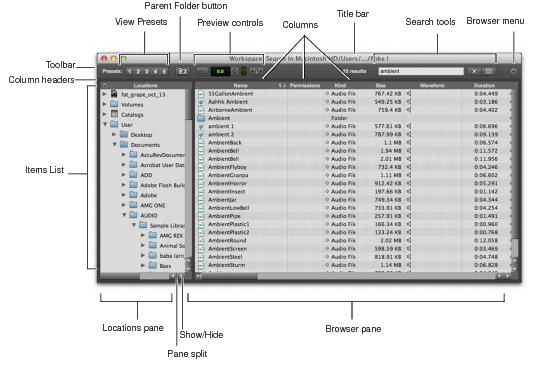
Basic Workspace browser tools, panes, and columns
To maximize processing speed and protect vital components, Workspace browsers do not display all folders. For example, in Windows, Workspace browsers do not display the WU Temp or System Volume Information folders; and on Mac, Workspace browsers do not display the System folder. This excludes them from being indexed, searched, sorted, or affected in any way by Workspace tasks. You should not store Pro Tools project or media files in any of these folders.
The main elements of a Workspace browser include the following.
• Toolbar
Provides the Browser menu, Search icon, View Presets (numbered 1–5), Workspace browser navigation tools, and preview tools.
• Items List
Displays the contents of a volume, folder, project, or Catalog database in rows.
• Columns
Identifies the type of metadata displayed in the items list (such as file name and format) for volumes, folders, and files in the Items List. Columns can be resized by dragging the column border, or rearranged by dragging the Column headers.
Each row of data in a Workspace browser represents an Item (such as a file or folder). Data about each item is displayed in columns.
• Locations Pane
Used to navigate the volumes (local and networked drives) on your system, the currently open project, indexed Catalogs of media, and the system User directory.
• Browser Pane
Displays the contents of items selected in the Locations pane or search results.