Creating Tracks
Pro Tools | First lets you can create mono and stereo tracks.
When new tracks are created, they are given a default name that can be changed at any time.
• To insert new tracks next to a specific track in a project, select that track by clicking the track’s name in the Mix or Edit window before opening the New Tracks dialog. The new tracks are added immediately after the selected track.
• To insert new tracks after the last tracks in a project, make sure that no track names are selected on-screen before opening the New Tracks dialog.
To create new tracks:
1. Do one of the following to open the New Tracks dialog:

Choose
Track > New.
Right-click any Track Name in the Mix or Edit windows, or Track List, and choose
New.

Press Command+Shift+N (Mac) or Control+Shift+N (Windows) to open the New Tracks dialog
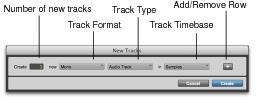
New Tracks dialog
2. Select the type of track you want to add from the Track Type pop-up menu.
To auto-scroll the Track Type pop-up menu in the New Tracks dialog, press Command (Mac) or Control (Windows) and use the Up/Down Arrow keys.
3. Select the track format (mono, stereo, or one of the multichannel surround formats) from the Track Format pop-up menu. Surround formats are only available with Pro Tools HD.
To auto-scroll the Track Format pop-up menu, press Command (Mac) or Control (Windows) and use the Left/Right Arrow keys.
4. Select the timebase (samples or ticks) from the Track Timebase pop-up menu.
To auto-scroll the Track Timebase pop-up menu, press Command+Option (Mac) or Control+Alt (Windows) and use the Up/Down Arrow keys.
5. Enter the number of new tracks.
If you are creating various multiple new tracks, you can move to the next or previous row’s Number of New Tracks field by pressing Tab or Shift+Tab.
6. Do any of the following:
a. To add more tracks, click the Add Row button.
b. To remove a track, click the Remove Row button.
To add a new track, press Command+N (Mac) or Control+N (Windows), or press Command+Plus (+) (Mac) or Control+Plus (+) (Windows) on the numeric keypad.
To remove the last track from the New Tracks dialog, press Command+Minus (–) (Mac) or Control+Minus (–) (Windows).
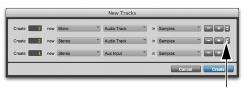
7. To reorder tracks, drag a Move Row icon up or down.
Move Row icon in the New Tracks dialog
8. Click Create.