Duplicating Tracks
The Duplicate Track command lets you duplicate one or more tracks, including their audio or MIDI data, automation, and other attributes.
To duplicate one or more tracks:
1. Select the tracks you want to duplicate.
2. Do one of the following:

Choose
Track > Duplicate.
Press Option+Shift+D (Mac) or Alt+Shift+D (Windows).
Right-click the name of the track in the Track List, or Mix or Edit window, and select
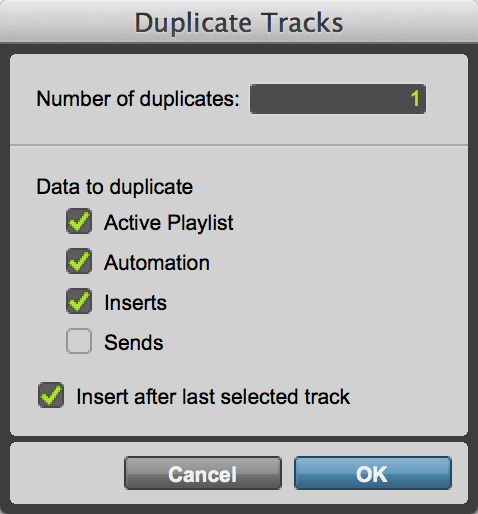
DuplicateDuplicate Tracks dialog
3. In the Duplicate Tracks dialog, configure the following options:
a. Enter how many copies you want to create in the Number of Duplicates filed.
b. To copy all clips from the source track, select Active Playlist.
c. To copy all automation from the source track, select Automation.
d. To copy all plug-in and insert assignments, select Inserts.
e. To copy all sends and send assignments, select Sends.
4. If duplicating multiple tracks, do one of the following:
If you want all the newly created tracks to follow the last selected source track (to the far-right of the Mix window, and at the bottom of the Edit window), select the Insert after Last Selected Track option.
If you want each newly-created track to be inserted directly after its source track, deselect the
Insert after Last Selected Track option.
5. Click OK to duplicate tracks according to the settings in the Duplicate Tracks dialog. Click Cancel to close the dialog and not create duplicate tracks.
 For information, see “Selecting Tracks” on page 88.