Setting the Project Meter and Tempo
Setting the Project Meter
The meter for projects defaults to 4/4. If you intend to record with a click in a meter other than 4/4, make sure to set the meter accordingly.
If a project’s meter does not match the music you’re recording, the accented clicks will not line up with what you’re playing, and, as a result, the recorded material may not align with the bars and beats in the Edit window.
Meter events, which can occur anywhere within a project, appear in the Meter ruler. For more information on inserting and editing meter events, see
“Meter Events” on page 472.
To set the meter for a project:
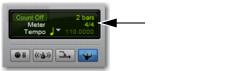
1. Double-click the Current Meter button in the Transport window or the Edit window Toolbar.
Meter button
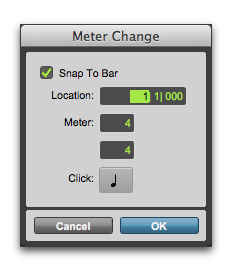
2. Enter the Meter for the project and set the Location to 1|1|000 (to ensure that the inserted meter event replaces the default).
Meter Change window
3. From the Click pop-up menu, select a note value for the beat. (For example, if you are in 6/8, select a dotted-quarter note).
4. Click OK to insert the new meter event.