Navigating the Timeline with the Toolbar Counters and Indicators
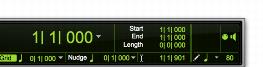
The counters and indicators at the top of the Edit window display the current playback location and Edit selection. These include the Main and Sub Counters, and the Edit Selection Start, End, and Length indicators.
All Edit window counters and indicators (except the Sub Counter) let you enter a location in their counter display to navigate to a specific time location.
Main Counter and Edit Selection indicators
The Main Counter displays the playback location in the time format for the Main Time Scale. The Sub Counter can be set to any of the other Time Scale formats for another timing reference.
The Edit Selection indicators (to the right of the Main and Sub counters) display the Start and End times, and Length of the current Edit selection according to the Main Timebase.
The Main and Sub Counters, as well as the Edit Selection indicators, also appear in the Transport window when it is set to display Counters.
To navigate with the Edit window Main Counter (or one of the Edit Selection indicators):
1. Do one of the following:

Click in one of the counters.
Press asterisk (*) on the numeric keypad to highlight the Main Counter in the Edit window (or the Main Counter in the Transport window or Big Counter window, if either are displayed).
2. Type in the new location. Press Period (.) to cycle through to the different time fields.
3. Press Enter to accept the new value and automatically locate there.
To set the Timeline selection by typing into the Edit Selection Start and End indicators in the Toolbar:
1. In the Toolbar, click in the Edit Selection Start indicator.
2. Type in the new start location and press Forward Slash (/) to enter the value and automatically move to the Edit Selection End indicator.
3. Type in the new end location and press Enter to accept the value.
 Shortcuts for entering start and end values in the Transport window are listed in “Numeric Entry Shortcuts for Selection Indicators” on page 314.