Other Useful Selection Techniques
Following are some additional selection techniques.
To position the edit cursor precisely at a clip start, end, or sync point:
2. Click with the Selector tool in the track.
3. Do one of the following:

Press Tab to move the cursor to the next clip or clip group start, end, or sync point.
Press Option+Tab (Mac) or Control+Tab (Windows) to move the cursor to the previous clip or clip group start, end, or sync point.
To move a selection to an adjacent clip on the same track:
1. Select a clip with the Grabber.
2. Do one of the following:
Press Control+Tab (Mac) or Start+Tab (Windows) to move the selection to the next clip.
Press Option+Control+Tab (Mac) or Control+Start+Tab (Windows) to move the selection to the previous clip.
In either instance, the original clip becomes deselected.
To slide an Edit selection in the Main Timebase ruler:
1. With the Selector or Grabber tool, make a selection.
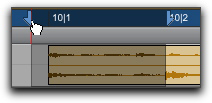
2. While pressing Option (Mac) or Alt (Windows), move the cursor over either of the Timeline Selection Markers in the ruler (the Grabber appears).
Sliding an Edit selection in the Main Timebase ruler
3. Drag left or right to move the Edit selection back or forward in time while preserving its length.