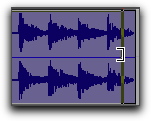
Trim Tool
With the Trim tool, you can quickly shorten or expand a clip (up to the entire length of the source audio file). The first time you trim a clip, Pro Tools automatically adds it to the Clips List as a new clip (with a name derived from the original) in order to differentiate it from the original.
The Trim tool is a nondestructive tool and does not actually modify the original audio or MIDI data (when working on clips). To return to the length of the original clip, drag it from the Clips List, or resize the edited clip with the Trim tool to its original length.
Use of the Trim tool is affected by the current Edit mode: Shuffle, Slip, Spot, or Grid (see
“Edit Modes” on page 284).
To trim a clip with the Trim tool:
1. Select the Trim tool.
2. Do one of the following:

Click the Trim tool pop-up menu and select
Standard.
Trim tool
Right-click on any track and select
Tools > Trim Tools > Standard.
3. Move the cursor near the start or end of the clip, so the Trim Tool cursor appears.
Trim tool
To reverse the direction of the Trim tool, press Option (Mac) or Alt (Windows).
4. Do one of the following:
If trimming the end, drag left to shorten the clip, right to lengthen.
If trimming the start, drag right to shorten the clip, left to lengthen.

When working with audio, you cannot trim past the boundaries of adjacent clips.
When trimming clips in a stereo track, all channels are trimmed.
When using Shuffle mode, subsequent clips are slid as necessary to make room for the edited clip. If using Grid mode, the dragged start/end times snap to the nearest Grid boundary. If using Spot mode, the Spot dialog opens, where you can enter the new location for the clip’s start or end point.