Trimming Note Start and End Times
Like clips, start and end points for MIDI notes can be adjusted with the Trim tool. If several notes are selected when performing the trim, each note is changed.
To change the start or end points for a group of MIDI notes:
1. Set the MIDI or Instrument track to Notes view.
2. Using the Pencil or Grabber tool, Shift-click each note you want to trim.
3. Do one of the following:

Select the Trim tool.
Use the Pencil tool.
4. Move the cursor near the beginning of any of the highlighted notes, so the Trim tool appears. Drag right to shorten the notes, or drag left to lengthen them.
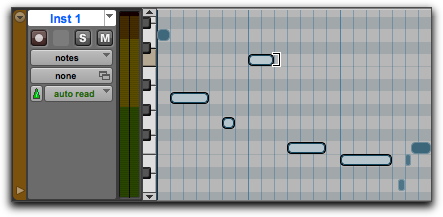
Changing note end times with the Trim tool
If the Edit mode is set to Grid, the dragged start or end point snaps to the nearest Grid boundary. If the Edit mode is set to Spot, the Spot dialog opens, where you can enter the new location for the note’s start or end point.

When in Grid mode, use the Command key (Mac) or Control key (Windows) to temporarily disable Grid mode.
Notes can also be trimmed with the
Trim Clip to Selection command (see
“Trim to Selection Command” on page 328) and the
Trim To Insertion command (see
“Trimming with Nudge” on page 331).