Recording MIDI Continuous Controller Data Over ReWire
The first step in automating a ReWire client application’s controls is to record the CC data to a MIDI track in Pro Tools.
To record MIDI from a ReWire client application in Pro Tools:
1. In Pro Tools | First, create a new MIDI track.
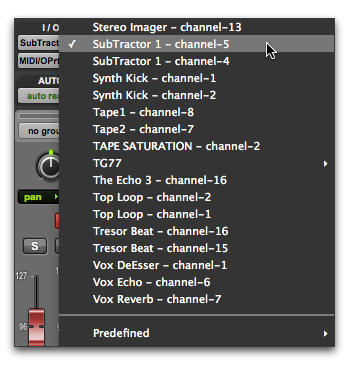
2. From the track’s MIDI Input selector, select the ReWire device that you want to record.
Selecting the ReWire client device to record MIDI CC data in Pro Tools | First

You must select the ReWire device from which you want to record MIDI controller data. Leaving the track’s MIDI Input set to All does not record any MIDI data over ReWire.
3. Record enable the MIDI track.
4. Start recording in Pro Tools.
5. Switch to the ReWire client application.
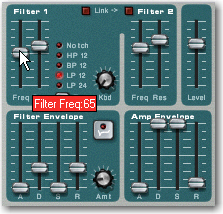
6. Adjust the control for which you want to record MIDI CC data. Control changes are recorded to the Pro Tools | First MIDI track as CC data.
Adjusting a control in a ReWire client application (Reason’s SubTractor shown)

If your external MIDI controller is correctly mapped to the corresponding ReWire client application’s controls, and it is correctly routed through Pro Tools | First, use your MIDI controller to adjust the parameter you want to record.
7. When you are done adjusting the control, return to Pro Tools | First and stop recording.
8. Record disable the MIDI track.
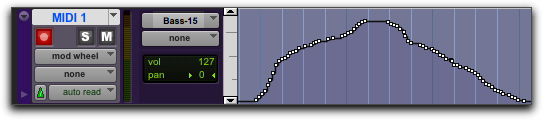
9. From the MIDI Track View selector in the Edit window, select the view for the CC data you just recorded.
MIDI CC data recorded from a ReWire client application