Assigning Sends to Tracks
To add a send to a track:
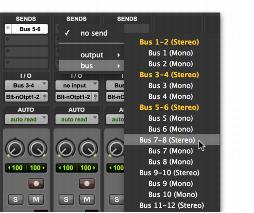
2. Click the Send selector on the track and choose a path from the pop-up menu.
Assigning a send to a stereo bus path
The send can be a mono or stereo (or any of the supported multichannel formats for surround mixing) output or bus path.
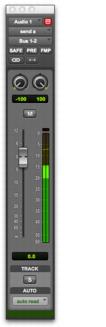
Send window (stereo)
3. Set the output level of the send in the Send window by doing one of the following:

Adjust the Send Level fader.
Set the send level to unity gain (0 dB) by Option-clicking (Mac) or Alt-clicking (Windows) the Send Level fader.
When you create a new send, its initial output level defaults to –INF.
To remove a send from a track:
Click the Sends button on the track and choose
No Send from the pop-up menu.