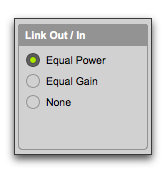
Link Settings (Crossfades Only)
Fade Link
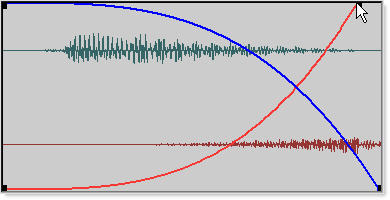
The Link setting links the selected fade-out and fade-in curves of a crossfade. If you adjust one curve, the corresponding curve is also adjusted. This ensures that the resulting crossfade is an equal power or equal gain crossfade, depending on which one you select.
• Equal Power
Recommended for material that is not phase coherent, as in the case of a crossfade between two completely different types of material. Use this option to avoid the volume drop that can occur with an Equal Gain crossfade. With this fade, you can Option-click (Mac) or Alt-click (Windows) the fade curve to reset it to its default shape.
• Equal Gain
Recommended for material that is phase-coherent or nearly phase-coherent, as in the case of a crossfade between identical clips/instruments (for example, a repeated drum loop). Use this option to avoid clipping that can occur when using an Equal Power crossfade. With this fade, you can Option-click (Mac) or Alt-click (Windows) the fade curve to reset it to its default shape.
• None
Disables linking between the fade-out and fade-in curves, and lets you freely adjust them separately, including start and end points. This option also allows you to create custom crossfade shapes.
Adjusting the end point of a fade curve
When Link is set to Equal Power or Equal Gain, you can edit only the fade-in portion of the curve, by pressing Option (Mac) or Alt (Windows) while dragging. To edit only the fade-out portion of the curve, press Command (Mac) or Control (Windows) while dragging.