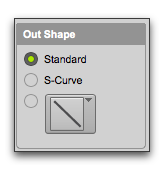
Fade-Out Shape Settings
The Out Shape setting lets you define the shape of the fade-out from a clip for a fade, or from clip 1 for a crossfade.
Fade-Out Shape
• Standard
Selects a single continuous fade curve. This creates a general-purpose fade that can be edited by dragging the curve itself.
• S-Curve
Selects an S-shaped curve, which inverts its beginning and end characteristics. This makes it possible to fade out faster at the curve’s start and slower at its end, for example. S-shaped curves can be useful with material that is difficult to crossfade effectively. S-curves can be edited by dragging the curve in the curve editor.
• Preset Curves
Seven commonly used preset curves are provided for fast crossfade creation. These can be edited by dragging the end points of the curve in the curve editor portion of this dialog. The seven presets are as follows:
• Preset Curve 1 stays at full volume throughout the fade, then immediately drops the volume at the end of the fade.
Preset Curve 1
• Preset Curve 2 fades out relatively slowly, keeping the volume fairly high throughout the duration of the fade.
Preset Curve 2
• Preset Curve 3 fades out slightly faster, keeping the volume slightly lower during the fade.
Preset Curve 3
• Preset Curve 4 fades out with a linear fade. This is the default curve.
Preset Curve 4
• Preset Curve 5 fades out quickly at the beginning of the crossfade.
Preset Curve 5
• Preset Curve 6 drops the volume even more quickly at the beginning of the fade.
Preset Curve 6
• Preset Curve 7 silences any audio at the beginning of the fade.
Preset Curve 7