Separate Commands
The
Separate commands define a selection within an existing clip, or a partially selected clip, as a new clip and separate it from surrounding material. The
Separate commands can also be applied to MIDI notes (see
“Separating MIDI Notes” on page 382).
New clips appear in the tracks in which they are created, separate from the data surrounding them. They also appear in the Clips List.
There are three different Separate commands:
• At Selection (or Edit Cursor)
Creates new clip boundaries at the selection start and end points. If there is no selection and the edit cursor is placed within the clip, the clip is split into two new clips at the insertion point. Likewise, MIDI notes can be separated at the selection start and end points (or at the Edit cursor).
• On Grid
Creates new clips according to the selected Grid value (see
“Defining the Grid Value” on page 506). Likewise, MIDI notes can be separated on the grid.
• At Transients
Automatically creates clip boundaries on detected transients within a selection. This uses the same algorithm for transient detection as the Tab to Transients feature (see
“Tabbing to Transients” on page 318). On Elastic Audio-enabled tracks, the
Separate At Transients command uses the transient events detected by Elastic Audio analysis (see
“Elastic Audio Analysis” on page 558).
Separate At Transients only applies to audio and is not applicable to MIDI notes or clips.
To separate one or more clips (or MIDI notes) at the selection (or at the edit cursor):
1. Do one of the following:

With the Selector tool, make an Edit selection.
With the Selector tool, click at the point where you want to separate the clip (or MIDI note).
2. Do one of the following:
Choose
Edit > Separate > At Selection.
With an Edit selection, Right-click near the cursor position or selection and choose
Separate from the pop-up menu.

Press Command+E (Mac) or Control+E (Windows) for Separate At Selection.
3. If the Editing preference for Auto-Name Separated Clips is disabled, type a name for the new clip when prompted, then click OK.
To separate clips (or MIDI notes) according to the current grid resolution:
1. Make an Edit selection.
2. Choose Edit > Separate > On Grid.
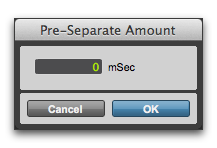
3. In the Pre-Separate Amount dialog, type a pre-separate amount in milliseconds. This can be useful to pad the beginnings of the new clips.
Pre-Separate Amount dialog
4. Click OK.
To separate audio clips at transients:
1. Make an Edit selection.
2. Choose Edit > Separate > At Transients.
3. In the Pre-Separate Amount dialog, type a pre-separate amount in milliseconds. This can be useful to pad the beginnings of the new clips.
4. Click OK.