The Smart Tool in Notes View
Smart Tool in Notes view
The following capabilities are available with the Smart Tool when working with MIDI and Instrument tracks in Notes view in the Edit window and in MIDI Editor windows:
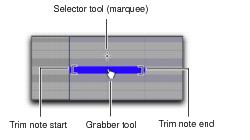
• For the Marquee Selector, position the cursor so it does not cover any notes.
• For the Grabber tool, position the cursor over the note, near its middle.
• For the Trim tool, position the cursor near the note start or end point.
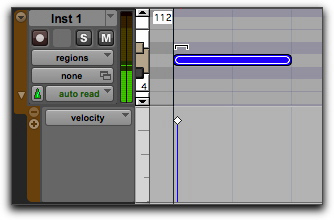
• For the Velocity Trim tool, position the cursor over the note and press Command (Mac) or Control (Windows).
Trimming the velocity of a note

To temporarily switch the Smart Tool to the Pencil tool, press Control (Mac) or Start (Windows).
To temporarily switch the Smart Tool to the Eraser, press Option+Control (Mac) or Alt+Start (Windows).