Notes View for MIDI and Instrument Tracks
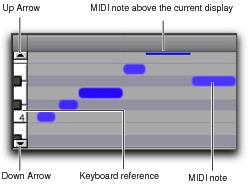
When a MIDI or Instrument track’s Track View is set to Notes, MIDI notes are displayed in a “piano roll” format. Each note is displayed as a small rectangle with its vertical placement indicating pitch and its horizontal placement indicating location in time (and duration).
MIDI track displaying notes
To the left of the MIDI or Instrument track is a vertical mini-keyboard, complete with octave numbering, for pitch reference. You can click the mini-keyboard to play pitches using the track’s selected MIDI output. Arrows at the top and bottom of the mini-keyboard (not available in the smaller track heights) are used to scroll the Notes display up and down.
In Notes view, the pitch range of MIDI notes that can be displayed depends on the track height, and on the current zoom value. Any time a track’s notes do not fit within its current height, notes above or below the viewed area are displayed as single-pixel lines at the very top and bottom of the range.
To scroll the Notes display up or down for a MIDI or Instrument track, do one of the following:

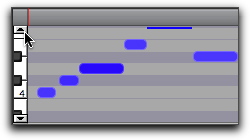
Click either the up or down arrow of the mini-keyboard.
Scrolling notes with the Up Arrow on mini-keyboard
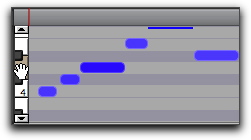
With any of the Edit tools (such as the Time Grabber tool) selected, press Command+Option+Control (Mac) or Control+Alt+Start (Windows) and drag up or down on the mini-keyboard.
Scrolling Notes display by dragging
If you have a mouse with a scroll wheel, move the cursor over the track and Command-Option-Control-scroll (Mac) or Control-Alt-Start-scroll (Windows) up or down to scroll the notes display up or down.
Using the Edit tools, notes can be inserted, deleted, transposed, trimmed, and moved. For more information, see
“Manually Editing MIDI Notes” on page 375.
 Clicking the mini-keyboard clears the current Edit selection. For more information, see “Selecting MIDI Notes” on page 375.