Clips View for MIDI and Instrument Tracks
MIDI and Instrument tracks can be viewed as Clips, which is similar to Waveform view for audio tracks. While a track’s notes are visible in Clips view, individual note editing is not available in this view. Instead, all editing occurs across a time range encompassing all track data, including continuous controller events, program changes, and System Exclusive events.
Use Clips view to define clips that represent song sections and clips, or to rearrange or assemble track material.
In Clips view, the vertical zoom is automatically scaled to fit the entire range of pitches of MIDI notes on a track.

You can double-click a MIDI clip to open it in the MIDI Editor window. See “MIDI Editor” on page 434.
There are a few things to consider when selecting, copying and cutting, and trimming MIDI clips:
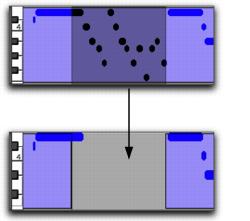
When cutting or clearing a clip or clip group selection that includes a note’s start point, the entire note is removed. This is even the case when only a portion of the note (that includes its start point) is selected.
• When cutting or clearing a clip or clip group selection that includes a note’s end point (but not its start point), the note remains and overlaps the edge of the clip.
Cutting a MIDI clip with note overlap
• Similar rules also apply when MIDI clips or clip groups containing MIDI clips are trimmed with any of the Trim tools. If the MIDI clip’s start point is moved beyond a note’s start point, the note is removed. If the clip’s end point is trimmed so that a note’s start point is within the clip but its end point is not, the note remains and overlaps the edge of the clip.
• When moving and placing MIDI clips with overlapping notes, the notes always move with the clips. When placing MIDI clips with overlapping notes next to or near another clip, the overlapping notes extend into the next clip on the track.
To separate MIDI notes, rather than leave them hanging, when separating, cutting or copying clips, make the Edit selection you want, switch to Notes view and use the Separate At Selection command, then switch back to Clips view and make the edit (separating, cutting, or copying).