MIDI Studio Setup (Mac)
Pro Tools | First recognizes the ports on your MIDI interface as generic ports. With Mac OS X, you use Apple’s Audio MIDI Setup (AMS) utility to identify external MIDI devices connected to your MIDI interface and configure your MIDI studio for use with Pro Tools | First.

To ensure optimum performance, do not change the AMS configuration while Pro Tools | First is playing back. Stop playback before launching AMS.
To configure your MIDI studio in AMS:
1. Do one of the following:

Launch Audio MIDI Setup (located in Applications/Utilities).
In Pro Tools | First, choose
Setup > MIDI Studio.
2. If the MIDI Studio window is not showing in AMS, choose Window > MIDI Studio.
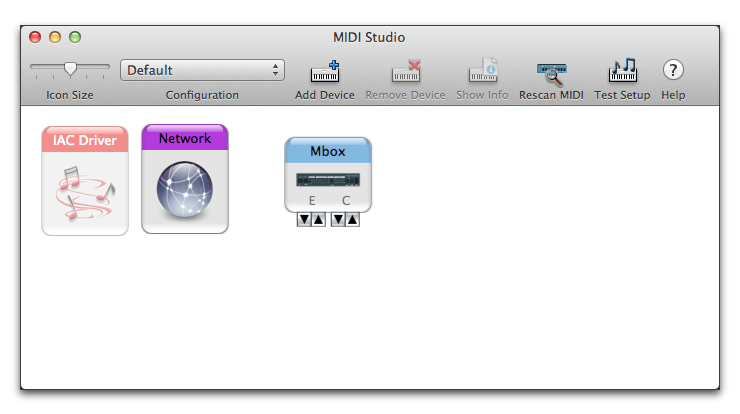
Audio MIDI Setup (MIDI Devices tab)
AMS scans your system for connected MIDI interfaces. If your MIDI interface is properly connected, it appears in the window with each of its ports numbered.
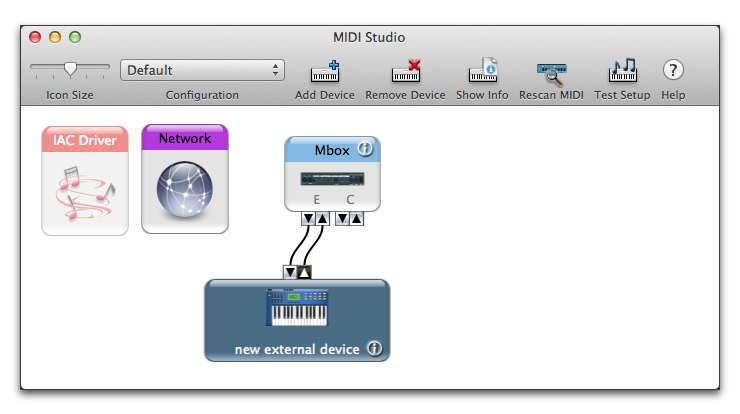
3. To create a custom MIDI device for any external MIDI devices connected to your MIDI interface, click Add Device. A new external device icon with the default MIDI keyboard image appears.
4. Drag the new device icon to a convenient location within the window.
5. Connect the MIDI device to the MIDI interface by clicking the arrow for the appropriate output port of the device and dragging a connection or “cable” to the input arrow of the corresponding port of the MIDI interface.
Making MIDI input and output connections
6. Click the arrow for the appropriate input port of the device and drag a cable to the output arrow of the corresponding port of the MIDI interface.

To remove a connection, select the cable and press Delete.
7. Repeat steps 3–6 for each MIDI device in your MIDI setup.
To customize an external MIDI device in AMS:
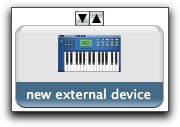
1. Select the external device icon and click Show Info (or double-click the new device icon).
External Device Icon
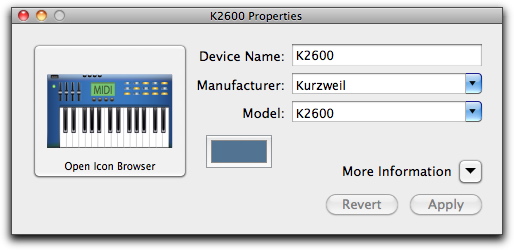
2. Select a manufacturer and model for the new device from the corresponding pop-up menus. (If the Manufacturer and Model pop-up menus do not provide a name for your particular device, you can type a name.)
Naming a new MIDI device
For Manufacturer and Model names, AMS refers to one or more files with the suffix “.middev” in the directory Root/Library/Audio/MIDI Devices. Pro Tools installs a file that contains information for many commercially available MIDI devices, named “Digidesign Device List.middev.” If the Manufacturer or Model names for any of your external MIDI devices is not available in the AMS Manufacturer and Model pop-up menus, you can add them by editing the middev file in any text editor (such as TextEdit).
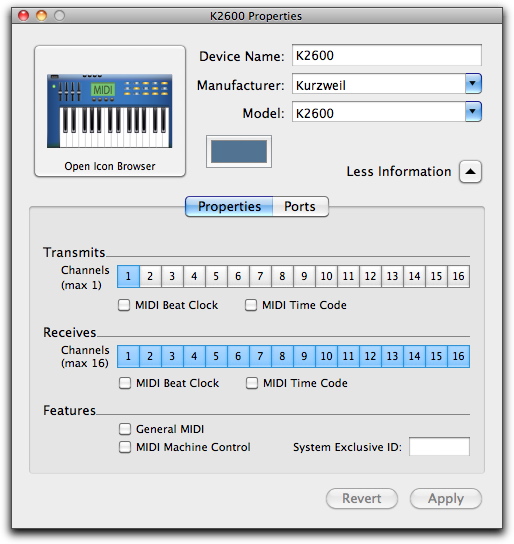
3. Click the More Information arrow to expand the dialog, then enable the appropriate MIDI channels (1–16) for the Transmits and Receives options. (These determine which channels the device will use to send and receive MIDI.)
Enabling MIDI channels
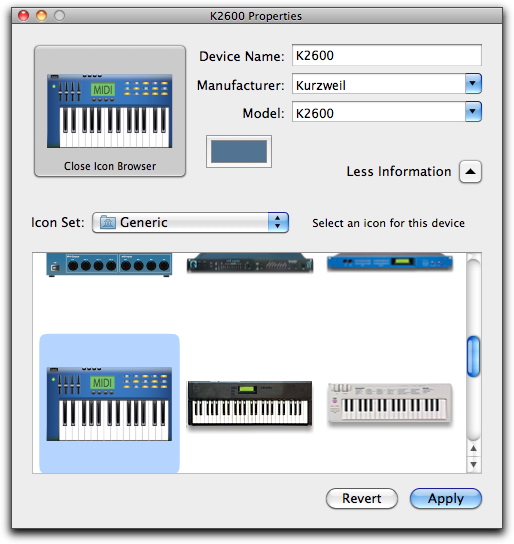
4. Click the device image. The window expands to show images for various MIDI devices (such as keyboards, modules, interfaces, and mixers). Select an icon for your device.
Selecting a device icon
To use your own custom icons, you can place TIFF image files in /Library/Audio/MIDI Devices/Generic/Images, and they will appear as choices in the AMS device window.
5. Select a device image and click Apply.
6. Close the AMS window to quit the AMS application.
The device names you enter appear as MIDI input and output choices in Pro Tools | First.