Manually Enabling Continuous Controller Automation
To manually enable a continuous controller for automation:
1. Do one of the following:

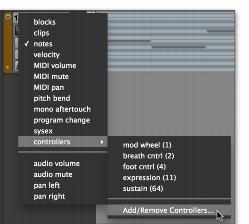
Click the Track View selector for the MIDI or Instrument track you want to edit, and select Add/Remove Controller from the controllers submenu.
Selecting Add/Remove Controllers from the Track View selector
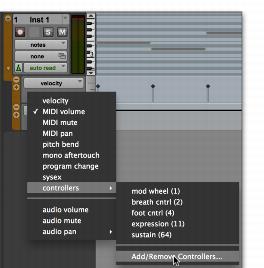
If Controller lanes are revealed under the MIDI or Instrument track you want to edit, click the Controller Type selector for the Controller lane under the track and select Add/Remove Controller from the controllers submenu.
Selecting Add/Remove Controllers from the Controller Type selector on a Controller lane
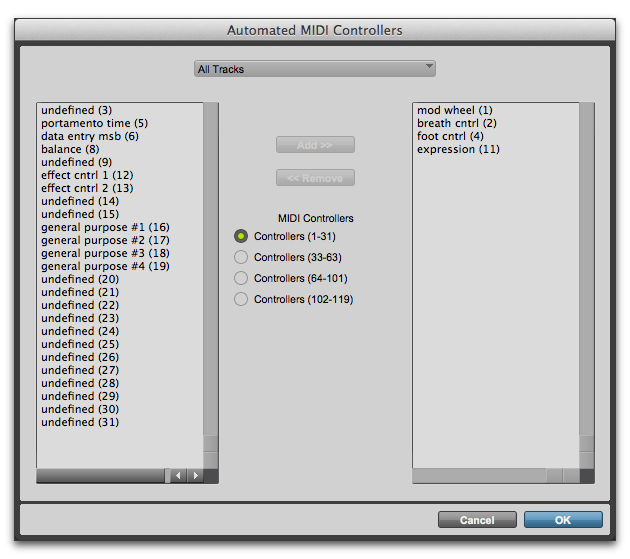
2. In the Automated MIDI Controllers dialog, select the MIDI Controllers range for the controller you want to automate.
3. Select the controller that you want to automate from the list on the left, and click Add. The selected controller is added to the Automated MIDI Controllers list on the right.
Automated MIDI Controllers dialog
4. Repeat steps 2 and 3 as necessary until you have added all of the MIDI controllers you want for automation.
5. To remove a controller from the Automated MIDI Controllers list, select it in the list on the Right and click Remove.
6. Click OK to close the Automated MIDI Controller dialog.

When you record continuous controller information from an external MIDI device, the controller is automatically added to the MIDI Controllers list.