Editing Looped Clips
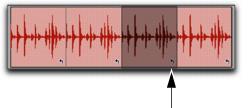
Looped clips can be edited as a group (all loop iterations together) or as individual clips (each loop iteration). For example, selecting a looped clip with the Grabber tool selects the entire loop (the source clip and all its loop iterations), but clicking the Loop icon of one of the loop iterations selects only that one iteration.
Moving a looped clip moves the source clip and all its loop iterations together as a group. Loop iterations cannot be moved independently of their source clip. If you move or paste another shorter clip over a looped clip the loop is continued after the new clip. The parts of a separated looped clip can be adjusted independently.

Manually warping any part of a looped clip in Warp view separates only that iteration from the looped clip.
To select a looped clip as a group (all loop iterations), do one of the following:

With the Grabber tool or Smart Tool, single-click the looped clip.
With the Selector tool, double-click the looped clip.
The source clip and all its loop iterations are selected.
To select an individual source clip or loop iteration, do one of the following:
With the Grabber tool or Smart Tool, single-click the Loop icon of the source clip or loop iteration.
With the Selector tool, single click the Loop icon and drag to the left until the clip is selected.
Loop icon