Using Strip Silence
To strip silence from an audio selection:
1. Select one or more audio clips.
2. Choose Edit > Strip Silence.

Press Command+U (Mac) tor Control+U (Windows) to open the Strip Silence window.
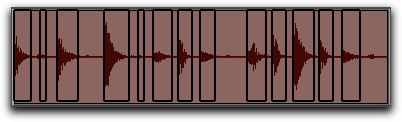
4. In the Strip Silence window, adjust the settings for Strip Threshold and Minimum Strip Duration (Min Strip) until Strip Silence rectangles appear in the selection.
Strip Silence rectangles
For finer resolution on these controls, press Command (Mac) or Control (Windows) while adjusting them.
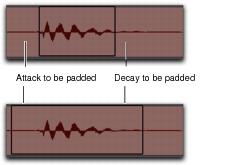
5. To retain material before and after the new clips, adjust the settings for Clip Start Pad and Clip End Pad.
Strip Silence, padding clip start and end points
6. Once the Strip Silence rectangles encompass the audio that you want to keep, press the Strip button.
The material defined as silence is removed from the selection and new clips are created, which also appear in the Clips List.
Strip Silence is nondestructive and does not remove audio data from parent audio files. In addition to the Undo command, you can use the Heal Separation command to restore stripped material.
Strip Silence works with stereo and keeps their audio clips phase-coherent.
To extract audio from an audio selection using Strip Silence:
1. Make an Edit selection.
2. Choose Edit > Strip Silence.
4. In the Strip Silence window, adjust the settings for Strip Threshold and Minimum Strip Duration (Min Strip) until the Strip Silence rectangles appear in the selection.
5. Click the Extract button.
All audio above the designated threshold is deleted and the “silent” portions of the track are left.
To separate clips using Strip Silence:
1. Make an Edit or Timeline selection.
2. Choose Edit > Strip Silence.
4. In the Strip Silence window, adjust the settings for Strip Threshold and Minimum Strip Duration (Min Strip) until the Strip Silence rectangles appear in the selection.
5. Click the Separate button.
New clips are created based on the boundaries detected by Strip Silence.