Spotting Clips
Spot mode is useful for projects in which you want to spot clips to precise locations based on any of the Time Scales.
To spot a clip:
2. Do one of the following:

Drag a clip from the Clips List, or drag audio files or projects from a Workspace browser to an existing track.
Click a clip already in a track with the Grabber tool.
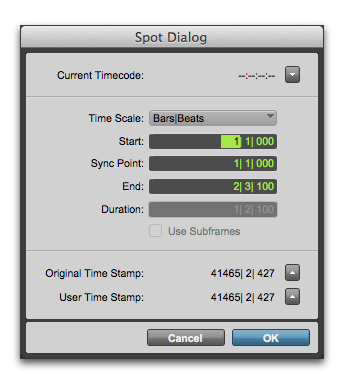
3. In the Spot dialog, select a time format from the Time Scale pop-up menu.
Each of the fields in the Spot dialog are displayed in the chosen Time Scale.
Spot dialog
4. Do one of the following:
Click in the field for Start, Sync Point, or End and type in a new location. Changing one of these locate points automatically updates the other locate points.
Click one of the up arrows next to Original Time Stamp or User Time Stamp to enter the associated values into the currently selected field.
5. Click OK. The clip is moved to the new location specified for its start, end, or sync point.
If a clip does not have a sync point defined, the Sync Point field in the Spot dialog functions the same as the Start field.