Exporting Your Mix
After you’ve finished recording, editing, and mixing tracks, you’re ready to mix down your project and export the results for publishing on the Internet or burning to disk. You can use the Export Audio Mix command to export your mix from the project to a single audio file.
To export the mix from your project as a stereo audio file:
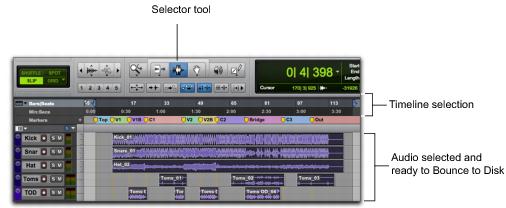
1. Use the Selector to select the length of the session in the Timeline (or on a track).
2. Choose File > Export > Audio Mix.
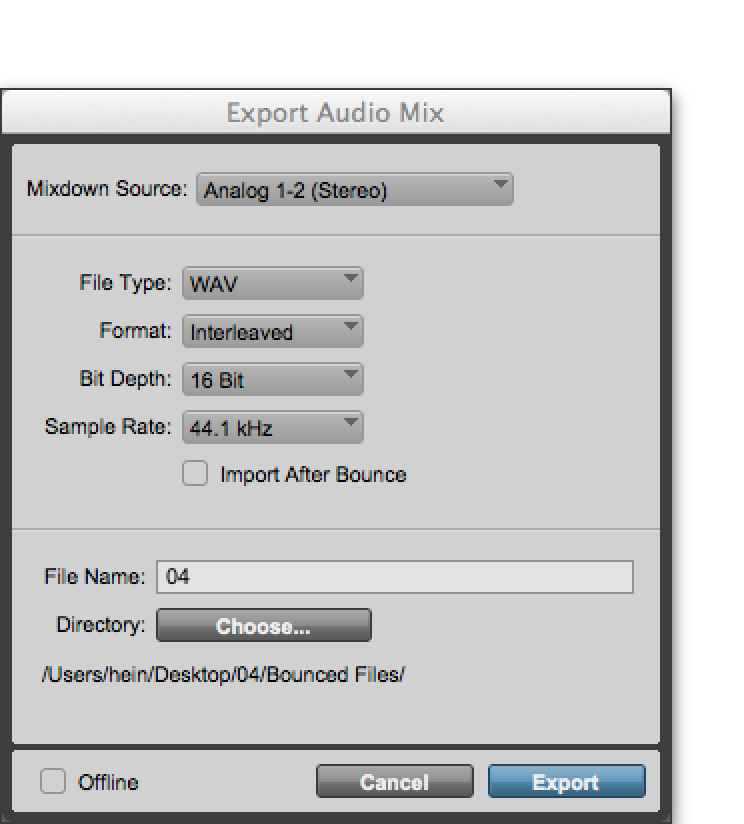
3. In the Export Audio Mix dialog, do the following:

Select the Mixdown Source (this will be the main channel path for your mix, such as main (Stereo) –> Analog 1–2).
Select the File Type (for example, WAV).
Select Interleaved for the Format.
If you will be burning the bounced audio file to disk, select 16 Bit for the Bit Depth and 44.1 kHz for the Sample Rate.
If you are using hardware inserts or external MIDI instruments that you are monitoring on Auxiliary Input or Instrument tracks, ensure that the Offline option is deselected.
For faster-than-real-time bounce, select the Offline option.
4. Click Export. (If you didn’t make a Timeline selection, the entire session will bounce from start to finish.)
5. In the Save dialog, type the name for the audio file you are bouncing, and select the location where you want it saved.
6. Click Save.
Pro Tools begins the export to file.
Mastering after Mixdown: After the export is completed, you will have an audio file that you can post online (to SoundCloud for example), import to your media player (such as an iPod), or burn to an audio disk using CD/DVD burning software (such as iTunes or Windows Media Player) that can be played on standard CD/DVD players. Listening to a reference CD/DVD or playback from a media player in an environment other than your studio is a time-tested way to hear how your mix translates to other systems and listening environments
.