Recording Your Performance to a Track
To record an audio track:
1. Ensure that the Audio Engine is optimized for recording (Setup >Playback Engine).
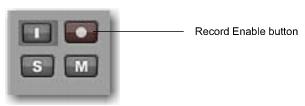
2. Click the track’s Record Enable button to arm the track for recording. The button flashes red.
3. Sing or play into the mic, or play your instrument.
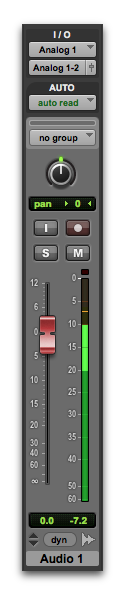
Watch the meter level in the track while you raise the input gain on your audio interface. (Note that moving the on-screen fader has no effect on input levels; it’s only for adjusting monitoring levels.)
4. Turn up the input gain on your audio interface until you see the on-screen track meter show green most of the time, or yellow for louder passages.

If the track meter shows red, gain is too high; lower the input gain.
If you barely see green in the track meter, gain is too low; raise the input gain.
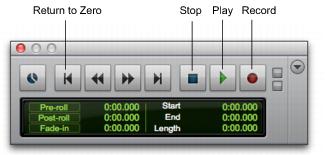
5. In the Transport window, click the Return to Zero button, or press the Return key (Mac) or the Enter key on the alpha-numeric keyboard (Windows) if you want to start recording from the beginning of the project.
6. Click the Record button in the Transport to record arm the project. The button flashes red. (This tells Pro Tools | First that you are ready to record—think of this as a “master” record enable button for the project.)
7. Choose Window > Edit so you can watch what happens when you record.
8. When you are ready to start recording, press the Spacebar or click the Play button in the Transport. The Transport Record button and the track’s Record Enable button turn solid red while recording.
9. To stop recording, press the Spacebar again or click the Stop button in the Transport. (The Transport Record button disengages, but the track’s Record Enable button remains enabled and flashes red until you click it).
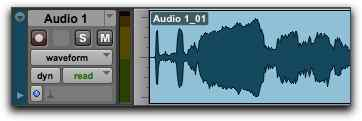
You have just recorded your first audio track. The diagram below shows a mono audio track after recording.
To record more tracks:
Simply repeat the same steps to create another audio track (mono or stereo) and continue recording more tracks. In this way, you can record additional parts against the tracks you have recorded previously. This is a common production technique for layering different parts to create an arrangement of a song.

Tip: If you want to monitor your performance while recording through Pro Tools | First, ensure that the Audio Engine is optimized for recording. In the Playback Engine dialog (Setup > Playback Engine), select the Record option.