Creating a Track
Pro Tools | First uses tracks for recording audio and MIDI in a session. Before you can record audio, you need to create an Audio track.
To create and prepare an audio track for recording:
1. Create a new project, or open an existing project.
2. Choose Track > New.
3. To record a single microphone or instrument connected to your audio interface, set the New Tracks dialog for 1 Mono Audio Track (in Samples) and click Create.
If you want to record both inputs at once(Pro Tools | First supports recording up to four channels simultaneously depending on your audio interface), create one stereo track or two mono tracks depending on what you have plugged in and what you plan to record:

To record two different sources (such as one vocal mic and one electric guitar), create 2 Mono audio tracks. This lets you record two input signals simultaneously. After recording, these can be edited, processed, and balanced independently.
To record a two-channel stereo source (such as a stereo keyboard), create 1 Stereo audio track.
4. Make sure the Mix window is open by choosing Window > Mix.
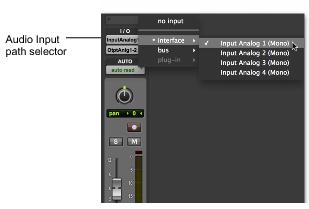
5. In the middle of the new track’s channel strip, notice where it says “Analog 1 (Mono)” (note that the name of this input may vary based on your connected hardware device). This shows which Input channel (Input 1 or Input 2) is assigned to this track. (To specify a different Input channel, click the Audio Input Path selector and choose the other channel.)