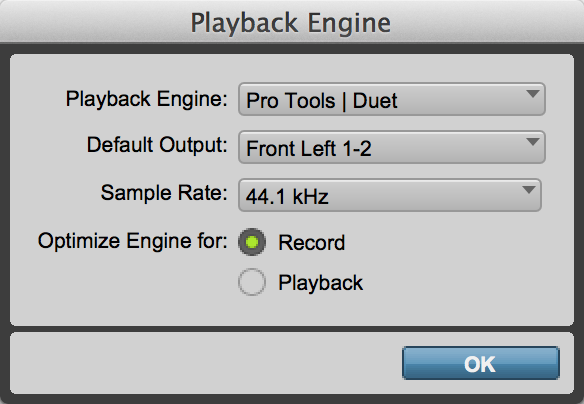
Playback Engine | From the Playback Engine selector, select your audio interface or the built-in sound of your computer for playback and recording in Pro Tools | First.  Tip: When Windows Audio Device is selected as the Playback Engine, you can choose both an Input and Output device. Avid recommends that the same device be selected for both Input and Output. Tip: When Windows Audio Device is selected as the Playback Engine, you can choose both an Input and Output device. Avid recommends that the same device be selected for both Input and Output. | |
Default Output | From the Default Output selector, select stereo output channels on your audio interface or the built-in sound of your computer that you want to be the default output channels for newly created tracks. This also controls your audition path and what is displayed for the main output meters in both the Edit and Transport windows. | |
Sample Rate | If no project is open, the Sample Rate selector lets you specify the sample rate for new projects and your audio interface (not all audio interfaces support all Pro Tools | First sample rates). If a project is open, the sample rate of the project is displayed. | |
Optimize Engine for | Select one of the following options for optimizing the audio engine. Note that you will want to switch between these two options depending on whether you are recording audio and MIDI or if you are playing back and mixing audio. | |
Record | Select the Record option for recording in Pro Tools | First. This option provides the lowest latency between the audio input and output of your audio interface. The option is also useful for reducing performance latency if you are playing Virtual Instrument plug-ins from a MIDI controller. | |
Playback | Select the Playback option for playback and mixing with plug-ins. This option introduces noticeable latency between the audio input and output of your audio interface, so it is not intended for monitoring while recording or for real-time performance of Virtual Instrument plug-ins. However, this option is optimized for plug-in processing, as well as audio and MIDI playback. If you encounter problems in projects with lots of plug-ins when the Record option is enabled, try using the Playback option instead. | |