Color Palette
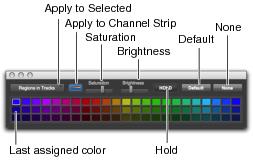
The Color Palette lets you make color selections for tracks, clips, and markers.
Color Palette window
The Color Palette supports independent clip color coding in the Clips List and in tracks.
To apply a color from the Color Palette:
1. Choose Window > Color Palette.
2. Do one of the following:

In the
Apply to Selected pop-up menu, select the destination for color coding:
Tracks,
Marker,
Clips in Tracks, or
Clips in Clips List.
Select a track, marker, group, track clip, or Clips List clip in the appropriate Pro Tools window. The
Apply to Selected menu will display the type of item you have selected.
3. Select a color from the palette, or select one of the following:
Default
Removes any custom coloring and restores the color to the default color orientation.
None
Turns off color assignment. Affected clips are drawn with black waveform or MIDI notes on light gray background. Affected tracks no longer show their color bars.