Selecting Record Monitor Modes with Track Input Monitoring
TrackInput monitoring lets you toggle individual audio tracks between Auto Input and Input Only monitoring modes at any time, during playback, recording, while stopped, and even when a track is not record-enabled. TrackInput monitoring provides the necessary monitoring flexibility for overdubbing and mixing, and is similar to input switching on analog multitrack recorders and similar machines.
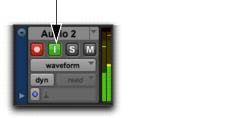
When the TrackInput button in a track is enabled (green), the track monitors audio in Input Only mode.
TrackInput Monitor button On (Input Only), in the Edit Window
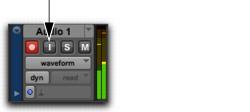
When the TrackInput button in a track is disabled, the track monitors in Auto Input mode.
TrackInput Monitor button Off (Audio Input), in the Edit Window
To toggle the monitoring mode of audio tracks, do one of the following:

To toggle individual tracks, click the TrackInput Monitor button for each track you want to toggle.
To toggle all tracks in the session, Option-click (Mac) or Alt-click (Windows) a TrackInput Monitor button.
To toggle all selected tracks in the session, Option-Shift-click (Mac) or Alt-Shift-click (Windows) a selected track’s TrackInput Monitor button.

Press Shift+I to enable the TrackInput Monitor button for any track containing the Edit cursor on an Edit selection.
To toggle the TrackInput button states of all record-enabled tracks, do one of the following:
To change all record-enabled tracks to Auto Input monitoring, select
Track > Set Record Tracks to Auto Input.
To change all record-enabled tracks to Input Only monitoring, select
Track > Set Record Tracks to Input Only.
To toggle record-enabled tracks between Auto Input and Input Only monitoring, press Option+K (Mac) or Alt+K (Windows).