 Plug-Ins cannot be inserted or removed during recording.Plug-Ins cannot be inserted or removed during recording.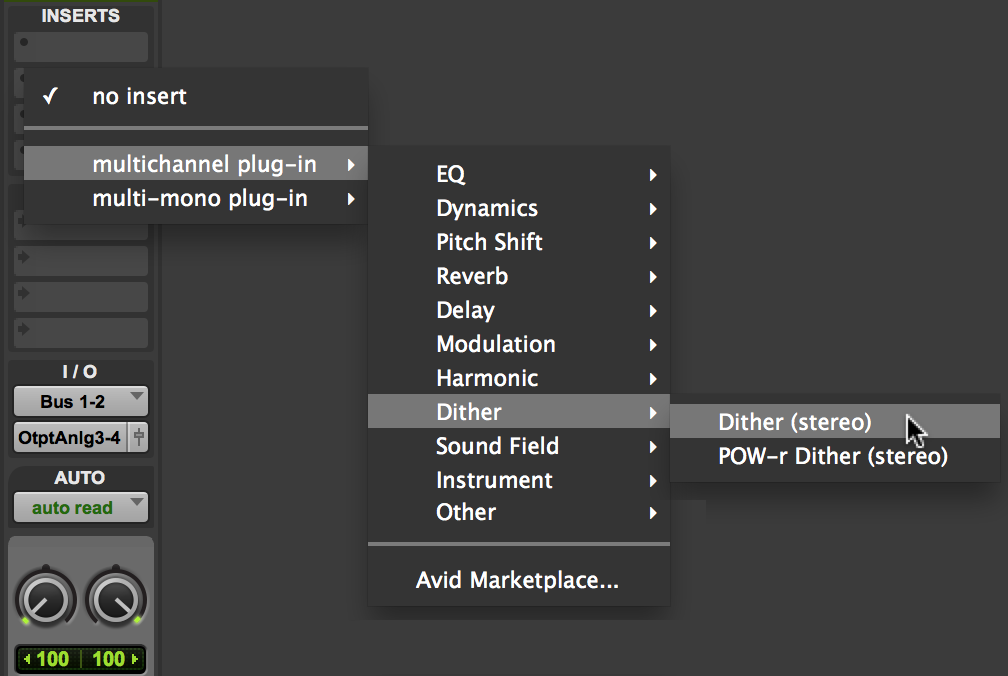
 Click the Insert selector and choose No Insert.
 You can insert a plug-in on a track by dragging one of its Plug-In Settings (.tfx) files from a Workspace browser onto an available track Insert position in the Mix window. See “Dragging and Dropping Plug-In Settings Files” on page 655.