Exporting MIDI Files
To export a project’s MIDI tracks for use in another MIDI application, or for playback with an external (hardware) MIDI sequencer, you can export Pro Tools MIDI and Instrument tracks as a Standard MIDI File.
MIDI can be exported from Pro Tools as a merged, single, multichannel track (Type 0), or as multiple tracks (Type 1).
If your Pro Tools project uses key signatures and meters, they are exported with the MIDI file.
To export all MIDI and Instrument tracks in the current project:
1. Make sure to unmute any MIDI tracks in the project that you want included in the exported MIDI file. (Or, conversely, mute any MIDI tracks you do not want included in the exported MIDI file.) For Instrument tracks, enable or disable the MIDI mute button (Instruments view).
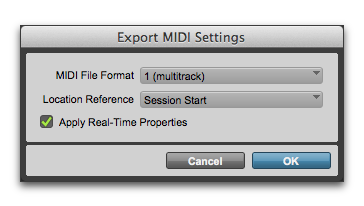
2. Choose File > Export > MIDI. The Export MIDI Settings dialog opens.
Export MIDI Settings dialog
3. From the MIDI File Format pop-up menu, select 1 (multitrack) or 0 (single track).
4. If the Song Start time is different from the Session Start time, select Session Start or Song Start from the Location Reference pop-up menu.
5. Enable or disable the Apply Real-Time Properties option.
6. Click OK.
7. Specify a folder destination and name for the MIDI file.

Pro Tools automatically adds the “.mid” extension when exporting MIDI files.
8. Click Save.
Pro Tools exports all unmuted MIDI and Instrument tracks in the current project to a Standard MIDI File and writes it to your hard drive. Exported MIDI information includes notes, controller events, program changes, and System Exclusive data, as well as events for tempo, meter, and markers.