Importing Audio Files and Clips Using the Import Audio Command
The Import Audio command lets you import audio files or clips into your project.
To import audio files or clips into a project using the Import Audio command:
1. Choose File > Import.
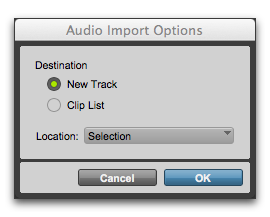
2. In the Audio Import Options dialog, select where the imported files will go in the project:
Audio Import Options dialog
- New Track
Each audio file is imported into its own individual track and into the Clips List.
When importing audio into a track, you can also choose the location in the track where the audio file will begin (such as Project Start).
- Clips List
Audio files are imported into the Clips List without creating a new track. Imported audio files appear in the Clips List and can then be dragged to audio tracks.
3. If you chose to create a new track, choose a location for the imported file in the track:
- Project Start
Places the file or clip at the start of the project.
- Song Start
Aligns the beginning of the file or clip to the Song Start point.
- Selection
Aligns the beginning of the file or clip to the edit cursor or to the beginning of a selection in the Timeline.
- Spot
Displays the Spot dialog, which lets you spot the file or clip to a precise location based on any of the Time Scales.
4. Click OK.