Workspace : Previewing Audio in Workspace Browsers
Previewing Audio in Workspace Browsers
Audio files can be previewed in Workspace browsers. Previewing is heard on the Default Output as selected in the Playback Engine dialog (Setup > Playback Engine). The base level for previewing is determined by the Master Fader (or Auxiliary Input) level assigned to the Audition path. You can also adjust the Preview Volume in the Workspace browser.
To preview an audio file in a Workspace browser:
1. Select an audio file in a browser Items List. Make sure the Workspace browser is the foreground (active) window.
2. Do one of the following:

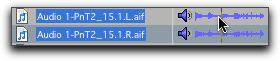
Click the Waveform Preview button (the speaker icon to the left of the waveform display). Click again to stop auditioning.
If
Spacebar Toggles File Preview is selected in the Browser menu, press the Spacebar. Press the Spacebar again to stop auditioning.
Press Command+P (Mac) or Control+P (Windows) to start and stop previewing.
Press the Esc key to stop previewing.

If the Auto-Preview option is enabled, previewing starts as soon as the file is selected in a Workspace browser.
To audition from a specific location within the file:
Click in the waveform display at the location.
Auditioning an audio file