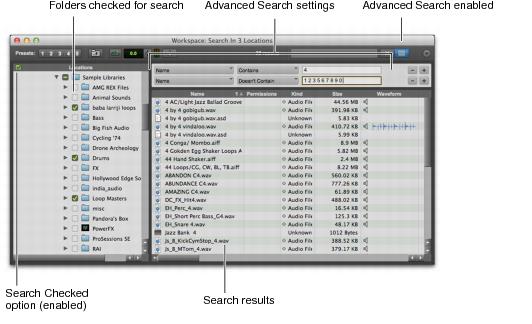
Advanced Search on a Checked Items
To initiate an advanced search on checked items in the Locations pane:
1. Do one of the following:

Click the Advanced Search button.
Press Command+Shift+F (Mac) or Control+Shift+F (Windows).
2. If it is disabled, enable the Search Checked option at the left of the Locations pane header by clicking it.
3. In the Locations pane, check each of the Volumes, Catalogs, Projects, or Folders that you want to search.
Advanced search results for checked folders
4. Select the Column type.
5. Select the Search Criteria.

Command-click (Mac) or Control-click (Windows) to select multiple criteria for an either/or search.
6. Click in the Search Text field and type text for the search. (Use spaces between text strings for either/or searches and use quotes around text strings with spaces for and searches).
7. Press Return (Mac) or Enter (Windows).
The search results are displayed in the Workspace pane.
If you want to refine your search, click the Add Row button to add further constraints to the search. Repeat steps 4-6 for each row you add.