Workspace Browser Menu
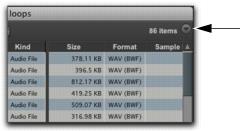
All Workspace browsers provide a Browser menu in the upper right corner of their toolbar. The Browser menu provides access to global workspace commands. When enabled, these commands apply to all items in all open browsers
Workspace Browser menu icon
• Loop Preview
Previews the selected file by looping playback of the file. If multiple files are selected, only the first selected file previews. When Loop Preview mode is enabled, the Preview button updates to show a Loop Preview Mode icon.
• Auto-Preview
Enables or disables automatic preview of files. When this option is enabled, selecting a file in the browser starts preview. The Preview button updates to show that Auto-Preview is enabled.
• Spacebar Toggles File Preview
Enables or disables the Spacebar for starting and stopping preview. When this option is disabled, use the Preview button to start and stop preview. In this mode, the Spacebar starts and stops project playback. This lets you play back the project and, with the Audio Files Conform to Session Tempo option enabled, preview the selected audio file in time with the project.

When a browser is front-most, Command+P (Mac) or Control+P (Windows) starts and stops preview. Also, the Esc key stops preview.
• Audio Files Conform to Session Tempo
Conforms all tick-based audio files with Elastic Audio analysis, as well as REX and ACID files, to the project tempo. This option lets you play back the project and simultaneously preview the selected files in time with the project. This option is only available when a project is open. For more information, see
“Conforming Preview to the Project Tempo” on page 156.
When the Audio Files Conform to Session Tempo option is enabled, Pro Tools analyzes un-analyzed files on preview or import. Audio files that have been analyzed as tick-based can then be previewed at the project tempo and conform to the project tempo on import.
When the Audio Files Conform to Session Tempo option is disabled, any tick-based audio files with Elastic Audio analysis, and REX and ACID files preview and import at their native tempo.
• Show Offline Volumes
Select (or deselect) the Show Offline Volumes command to show (or hide) all indexed offline volumes from the database in the Locations pane.
• Delete Index for All Offline Volumes
Select (or deselect) the Delete Index for All Offline Volumes command to delete the index for all offline volumes from the database in the Locations pane.