Track Level Meters
On audio tracks, level meters indicate the level of the signal being recorded or played back from the hard drive. When an audio track is record-enabled or input monitoring–enabled, these meters indicate record or input monitoring levels respectively.
On Auxiliary Input, Master Fader, and Instrument tracks, level meters indicate the level of the signal being played through the channel output.
On MIDI tracks, and in Instruments view for Instrument tracks, the meter shows the MIDI velocity of the most recent MIDI event.
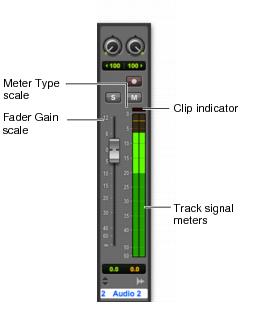
Stereo audio track in the Mix window (Pro Tools HD)
• Fader Gain Scale
The Fade Gain scale indicates the amount of gain boost or attenuation of the signal by the Fader control.
• Meter Scale
Displays the meter scale.
• Track Signal Meter
For audio, Auxiliary Input, Instrument, and Master Fader tracks, meters show a green hash mark to indicate where digital 0 dB sits on the selected Meter scale. If digital 0 dB sits above the current Meter scale, the hash mark moves to the top of the Meter and is colored orange.
• Clip Indicator
Displays Red when clipping at the audio interface input or output converters, or when clipping while writing to a 16- or 24-bit audio file. The clip indicator displays yellow when the audio signal exceeds 0 dBFS in the internal mixer. For more information, see
“Clip Indication” on page 82.