Click Options
Pro Tools | First provides options and controls for driving a click. The following steps are for configuring and enabling a click using the Click plug-in or MIDI.
To configure click options:
1. Open the Click/Countoff Options dialog by doing one of the following:

Choose
Setup > Click/Countoff.
Double-click the Metronome button in the Transport window or the Edit window Toolbar.
2. In the Click/Countoff Options dialog, do one of the following:
If using the Click plug-in, select
None in the
Output pop-up menu.
If playing a click using MIDI, select the port number (device) and channel for the click from the
Output pop-up menu.
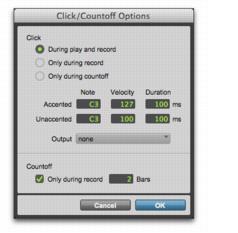
Click/Countoff Options dialog
3. Specify the note, velocity, and duration for the accented and unaccented notes.

If one is connected, you can also play new note values on a MIDI controller keyboard.
When listening to the click in your project, the accented note sounds on the first beat of each measure and the unaccented note sounds on the remaining beats.
4. Select whether the click is heard During Play and Record, or Only During Record, or Only During Countoff.
5. If using a countoff, specify the number of Bars to be counted off. To hear the countoff only when recording, select that option.
6. Click OK.