Creating Fades and Crossfades in Batches
Using Batch Fades, you can create many fades at once. Select across several clips and use the Create Fades command to create crossfades for each clip transition. If your selection includes clips that already have crossfades, this feature lets you modify them.
To apply crossfades between multiple clips:
1. With the Selector tool, click in the first clip in which you want to create a crossfade. Make sure that the selection includes the entire clip.
2. Drag to extend the selection to include the last clip you want to crossfade. Make sure that the selection includes the entire clip.
Selected clips for Batch Fades
3. Do one of the following:

Choose
Edit > Fades > Create.
Press Command+F (Mac) or Control+F (Windows).
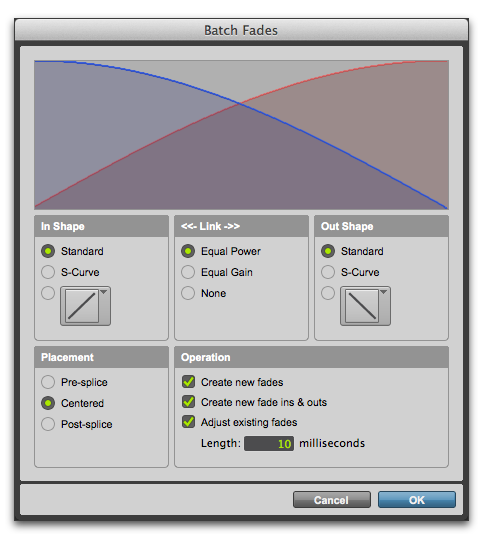
4. In the Batch Fades dialog, select whether you want to Create New Fades, Create New Fade-Ins & Outs, Adjust Existing Fades, or a combination of these options.
If you choose to create new fades and new fade-ins and outs, new crossfades are created at each clip boundary that is bordered by another selected clip, a fade-in is created at the start of the first clip, and a fade-out is created at the end of the last clip.
Batch Fades dialog
6. Enter a crossfade length in milliseconds.
7. Click OK.
Pro Tools creates the fades for all selected clips.

 Fade lengths can be resized with any of the Trim tools, including Nudge Trim commands. See “Using the Trim Tools” on page 294 and“Trimming with Nudge” on page 331.