Creating a Fade-Out
To create a fade-out:
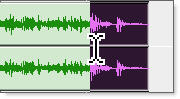
1. Select the end of the clip that you want to fade out. The selection must extend to the exact end of the clip or a blank area after the clip in the track.
Selecting the end of a clip for a fade-out
2. Do one of the following:

Choose
Edit > Fades > Create.
Press Command+F (Mac) or Control+F (Windows).

To apply the Fade Out using the Default Fade Out setting (standard equal gain), and without opening the Fades dialog, press Command+Control+F (Mac) or Control+Start+F (Windows).
3. Select the fade-out curve and configure the other Fade settings.
4. Click the Audition button to audition the fade.
5. Adjust the curve by dragging it or by selecting a different shape from the Out Shape pop-up menu.
6. Click OK.
Pro Tools calculates the fade and the selected fade curve appears in the clip.