Trim to Insertion Commands
You can trim a clip or MIDI note by automatically removing the material between the Edit insertion point and the start or end point of the clip.
To trim from a start point to insertion:
1. With the Selector tool, click inside the clip or note where you want the new start point to be.
2. Choose Edit > Trim Clip > Start To Insertion. The clip’s start point is automatically trimmed to the insertion point.

Press Option+Shift+7 (Mac) or Alt+Shift+7 (Windows) to Trim Start To Insertion.
To trim from an end point to insertion:
1. With the Selector tool, click inside the clip or note where you want the new end point.
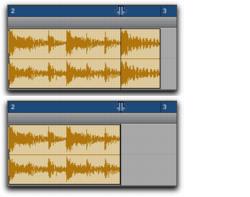
2. Choose Edit > Trim Clip > End To Insertion. The clip’s end point is automatically trimmed to the insertion point.
Clip end trimmed to insertion
Press Option+Shift+8 (Mac) or Alt+Shift+8 (Windows) to Trim Start To Insertion.