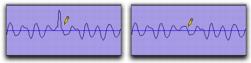
Waveform Repair with the Pencil Tool
On audio tracks, the Pencil tool lets you destructively “redraw” waveform data. This tool is most commonly used to repair a pop or click in an audio file. A pop or click appears as a sudden sharp spike in a waveform. This tool only becomes active when the Edit window is zoomed in to the sample level.
Although you can Undo a Pencil tool edit, it is recommended that you create a backup copy of the target audio before using the Pencil tool. You can do this by using the AudioSuite Duplicate plug-in.

The Pencil tool is a destructive editing tool that permanently modifies the audio file on disk and should be used with caution.

For information about the AudioSuite Duplicate plug-in, see the Audio Plug-ins Guide.
To destructively edit an audio waveform with the Pencil tool:
1. Locate the area you want to edit.
2. Using the Zoomer tool, zoom down to the sample level so the waveform appears as a continuous thin line. Adjust the Track Height, as necessary, to edit the waveform with greater precision.
3. Select the Pencil tool.
Pencil tool
4. Carefully draw with the Pencil tool by dragging over the area of the waveform.
Do not over-edit or the results may be undesirable. However, you can use the Undo command to undo your previous edit.
Repairing a “pop” with the Pencil tool
The Pencil tool can independently edit different channels of a multichannel track.
Try to limit editing to smoothing over a very small problem area, and keep the “fixes” in character with the shape of the surrounding waveform.