Creating Loops with the Loop Trim Tool
To create loop clips using the Loop Trim tool:
1. Do one of the following:

Click the Trim tool pop-up menu and select
Loop.
Right-click on any track and select
Tools > Trim Tools > Loop.
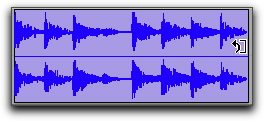
2. Position the cursor over the top half of an unlooped audio or MIDI clip, or clip group. The cursor changes to indicate that you can loop trim the clip. (Positioning the cursor over the bottom half of the clip results in the Standard Trim cursor.)
Loop Trim cursor
3. Do one of the following:
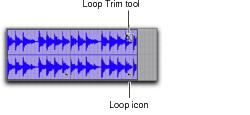
Click at the end of the clip, and drag left or right to the point you want the loop to stop.
Click at the beginning of the clip, and drag left or right to the point you want the loop to start.
Looped clip