Track View and Edit Content
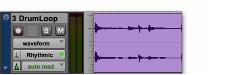
When cutting or copying track material, the Track View determines the type of data placed on the Clipboard. When editing in a track’s Master View (Waveform view for audio tracks and Clips view for MIDI or Instrument tracks), selections include all underlying automation and controller data. Thus, cutting an audio clip can also cut any volume, pan, mute, send, continuous controller, or plug-in automation that is also on the track. This saves you from having to individually cut from each automation parameter on the track.
Audio waveform data
When selecting groups of MIDI notes in Notes view with any of the Grabber tools (by drawing a rectangle around them), only the note data is placed on the Clipboard. When selecting a time range of MIDI notes (in Notes view) with the Selector tool, all controller data in the track is selected (similar to selecting with the Selector tool on audio tracks in Waveform view).
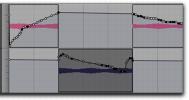
When a track is displaying automation data or controller data, only that data is placed on the Clipboard. Also, whenever you cut or copy automation data, bounding breakpoints are created at each end of the selected area, in order to preserve the slope of the automation both inside and outside the selection.
Automation data with Cut and Pasted audio clip
The Shuffle Clips option affects how material is cut and pasted:
• When Shuffle Clips is enabled, the Cut command leaves no empty space, since the clips to the right of the cut slide over, closing the gap. Otherwise the Cut command leaves an empty space corresponding to the data removed from the track.
• When Shuffle Clips is enabled, pasted data causes all clips to slide over to make room for the pasted material. Otherwise, pasted data can overlap an adjacent clip.
New clips are often auto-created when performing edits. For instance, when clearing a selection from a clip, new clips are auto-created from the material residing outside of the selection.
 For more information on the Shuffle Clips option, see “Shuffle Mode” on page 284.