Inserting Events in the MIDI Event List
You can insert events in the MIDI Event List by choosing an event type from the MIDI Event List menu. Following are several examples of inserting events in the MIDI Event List.
To insert a note in the MIDI Event List:
1. From the MIDI Event List menu, select Insert > Note.

With the MIDI Event List as the front-most window, press Command+N (Mac) or Control+N (Windows) to Insert a note.
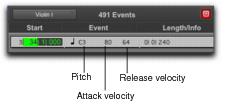
2. Enter the location, pitch, attack (Note On) and release (Note Off) velocities, and length for the new note. To move between the Event Entry fields, use the Left and Right Arrow keys.
Event Entry fields for note
When a field is selected, enter a value with any of the following methods:

Enter the value on the numeric keypad.
Drag up or down to scroll to the value.
Play the note on your MIDI controller keyboard, then press Return (Mac) or Enter (Windows) on the alphanumeric keyboard to confirm the value.
With the Start field selected, you can automatically enter the location of another event already in the track by clicking that event.
3. Do one of the following:
To insert the note and remain in Event Entry mode, press Enter on the numeric keypad.
To insert the note and exit Event Entry mode, press Return (Mac) or Enter (Windows) on the alphanumeric keyboard.
To exit Event Entry mode, without inserting the note event, press Escape on the alphanumeric keyboard.
To insert a controller event in the MIDI Event List:
1. From the MIDI Event List menu, choose Insert > Controller.
With the MIDI Event List as the front-most window, press Command+L (Mac) or Control+L (Windows) to Insert a controller event.
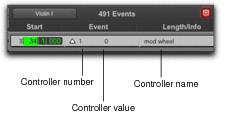
2. Enter the location, controller “type” number, and controller value for the new event. The controller name is displayed in the Length/Info column, to the right of the controller value. To move between the Event Entry fields, use the Left and Right Arrow keys.
Event Entry fields for controller event
When a field is selected, enter a value with any of the following methods:
Enter the value on the numeric keypad.
Press the Up or Down Arrow to scroll to the value.
While pressing Command (Mac) or Control (Windows), drag up or down to scroll to the value.
Play the controller event on your MIDI controller keyboard, then press Return (Mac) or Enter (Windows) on the alphanumeric keyboard to confirm the value
With the Start field selected, you can automatically enter the location of another event already in the track by clicking that event.
3. Do one of the following:
To insert the controller event and remain in Event Entry mode, press Enter on the numeric keypad.
To insert the controller event and exit Event Entry mode, press Return (Mac) or Enter (Windows) on the alphanumeric keyboard.
To exit Event Entry mode, without inserting the controller event, press Escape on the alphanumeric keyboard.
To insert a program change in the MIDI Event List:
1. From the MIDI Event List menu, choose Insert > Program Change.
With the MIDI Event List as the front-most window, press Command+P (Mac) or Control+P (Windows) to Insert a program change event.
2. Enter the location for the new event.
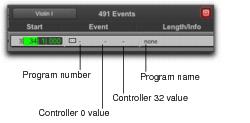
3. Enter a Program Change number and Bank Select value (if necessary). The program change name is displayed in the Info column.
Event Entry fields for program change
You can click in the Length/Info column to open the Program Change window (for details, see “Patch Select (Program and Bank Changes)” on page 949).
With the Start field selected, you can automatically enter the location of another event already in the track by clicking that event.
4. Do one of the following:
To insert the program change and remain in Event Entry mode, press Enter on the numeric keypad.
To insert the program change and exit Event Entry mode, press Return (Mac) or Enter (Windows) on the alphanumeric keyboard.
To exit Event Entry mode, without inserting the program change, press Escape on the alphanumeric keyboard.