Navigating in the MIDI Event List
You can use the Tab and Arrow keys to move through the MIDI Event List. You can also locate to the Edit start point, or any other specified location.
To move through the MIDI Event List, do any of the following:

Double-click to edit a value.
Press Tab or the Down Arrow to move to the next event (with or without the edit field selected).
Press Option+Tab (Mac) or Control+Tab (Windows) the Up Arrow to move to the previous event (with or without the edit field selected).
With an edit field selected, press the Right Arrow to move to the next edit field to the right.
With an edit field selected, press the Left Arrow to move to the next edit field to the left.
To keep the last event selected, press Shift while moving to the next or previous event.
To go to the Edit start point:
In the MIDI Event List, choose
Scroll To Edit Selection from the MIDI Event List menu.
To go to a specific location in the MIDI Event List:
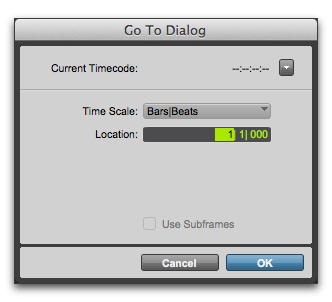
1. In the MIDI Event List, choose Go To from the MIDI Event List menu.

With the MIDI Event List as the front-most window, press Command+G (Mac) or Control+G (Windows) to open the Go To dialog.
2. In the Go To dialog, choose a format from the Time Scale pop-up menu.
Go To dialog
3. Enter the location you want to go to, then click OK.
The following items from the MIDI Event List menu affect navigating in the MIDI Event List:
- When the Page Scroll During Playback option is selected, the MIDI Event List scrolls during playback.
- When Scroll During Edit Selection is selected, the MIDI Event List is scrolled automatically when the Edit selection changes in the Edit window.