System Exclusive Events
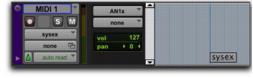
System Exclusive (Sysex) events can be recorded to MIDI or Instrument tracks in Pro Tools. Once the events are recorded, they appear in the track as blocks when the Track View is set to Sysex or a Controller lane set to Sysex is shown.
Sysex event block, Sysex view shown
While the contents of recorded System Exclusive events cannot be directly edited in Pro Tools, the events can be moved or nudged, copied and pasted, or deleted.
To record a Sysex event:
1. Create a new MIDI track.
2. Set the MIDI track Input to the MIDI port to which your MIDI device is connected.
3. Configure your MIDI device to send Sysex (such as a bulk dump).
4. Start recording in the Transport.

To begin recording the Sysex transfer from your MIDI device at the Timeline insertion point, enable Wait For Note.
5. Start the Sysex transfer from your MIDI device.
6. When the Sysex transfer from your MIDI device is complete, click Stop in the Transport.
To move a Sysex event:
1. Do one of the following:

Set the MIDI or Instrument track to Sysex view.
Reveal the Controller lane for the MIDI or Instrument track and show Sysex.
2. With any Grabber tool, drag the Sysex event left or right.
If the Edit mode is set to Grid, the dragged event snaps to the nearest Grid boundary. If the Edit mode is set to Spot, the Spot dialog opens.
To delete one or more Sysex events:
1. Do one of the following:
Set the MIDI or Instrument track to Sysex view.
Reveal the Controller lane for the MIDI or Instrument track and show Sysex.
2. Do one of the following:
Choose
Edit > Clear to remove the selected events from the track.
Press the Delete (Mac) or Backspace (Windows).
Individual Sysex event blocks can also be deleted by Option-clicking (Mac) or Alt-clicking (Windows) them with the Pencil tool.