Inserting and Editing Program Changes
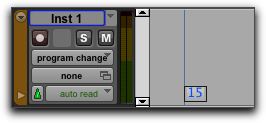
Program changes can be inserted into a track with the Pencil tool. Existing program changes can be edited, moved, and copied and pasted.

On some instruments, changing programs during playback can interrupt playback. To avoid this, place program change events in the track where there are no notes sounding.
To insert a program change with the Pencil tool:
1. Do one of the following:

Set the MIDI or Instrument track to Program Change view.
Reveal the Controller lane for the MIDI or Instrument track and show Program Change.
2. If you want the inserted event to snap to a Grid value, enable Grid mode.
3. Click with the Pencil tool in the track at the point where you want to insert the program change.
4. In the Patch Select dialog, select a program number (or patch name) and, if necessary, specify a bank change value.
5. Click Done to insert the program change event in the track.
Program change event
To edit a program change event:
1. With the Pencil tool or any Grabber tool, double-click the program change event you want to edit.
2. In the Patch Select dialog, select the new program number, or name and specify a bank change value (if necessary).
3. Click Done.
To move a program change event:
With the Pencil tool or any Grabber tool, drag the program change event left or right.
If the Edit mode is set to Grid, the dragged event snaps to the nearest Grid boundary. If the Edit mode is set to Spot, the Spot dialog opens.
To delete a program change event:
1. With the Track View or Controller lane set to Program Change view, click the program change event with any Grabber tool to select it.
If the clip contains other events you want to delete, you can delete the clip and the Program Change event will also be deleted.
2. Do one of the following:
Choose
Edit > Clear to remove the selected events from the track.
Press the Delete (Mac) or Backspace (Windows).
Individual program change events can also be deleted by Option-clicking (Mac) or Alt-clicking (Windows) them with the Pencil tool.