Inserting a Series of Notes
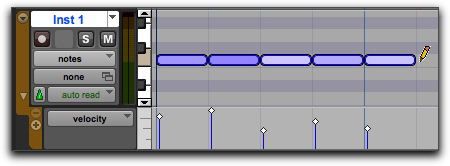
In the Edit window and in the MIDI Editor, the Line, Triangle, Square, and Random Pencil tool shapes can be used to enter a series of identical pitches with varying velocities. The duration and spacing for the inserted notes are determined by the current Grid value and the Default Note Duration setting.
When the Default Note Duration is greater than the Grid value, the inserted notes are truncated to match the Grid value and not overlap.
The note velocities are determined by the Pencil tool shape:
• Use the Line shape to enter notes with identical velocities.
• Use the Triangle shape for a ramp up and down of velocities.
• Use the Square shape for alternating velocities of loud and soft.
• Use the Random shape for a series of notes with random velocities.
For example, to insert a series of notes with random velocities in the Edit window:
1. In the Edit window, set the MIDI or Instrument track to Notes view.
2. Select the Pencil tool and make sure it is set to Random.
3. To insert consecutive quarter notes on the beat, do the following:
a. Set the Main Time Scale to Bars|Beats.
b. Set the Edit mode to Grid.
c. Set the Grid value to quarter notes.
d. Set the Default Note Duration value either to quarter notes (or to Follow Grid).
With these settings, the notes are inserted spaced one quarter note apart.
4. Click at the point to insert the first note and drag to the right until the number of notes you want have been inserted.
Inserting a series of notes with the Pencil tool