Creating Clip Groups
To create a clip group:
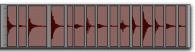
Selecting clips to be grouped on a single audio track
The size of the selection determines the size of the clip group. The selection can start and end on any clip boundary, empty space, or even in the middle of a clip. Selections starting or ending within a clip will separate the clip at the selection boundary when you create a clip group. Clip groups created from object-based selections include all selected and unselected clips between the first and last selected clip on the track.
2. Do one of the following:

Choose
Clip > Group.
Right-click the Edit selection and choose
Group.

Press Command+Option+G (Mac) or Control+Alt+G (Windows) to group selected clips.

The Group and Ungroup Clip menu commands apply to any Edit selection regardless of the current Track View.
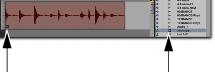
The clip group appears as one clip with the clip groups icon in the lower left corner. Clip groups also appear in the Clips List.
Clip Group icons on an audio track and in the Clips List